Your P60 Explained — Complete UK Guide 2026/27
Every year, millions of UK employees receive a P60 — and most of them put it in a drawer without really understanding what it says. That’s a mistake. Your P60 is one of the most important financial documents you’ll receive, and knowing how to read it, use it, and replace it if you lose it can save you real time and hassle.
This guide covers everything you need to know about your P60 for the 2026/27 tax year.
What is a P60?
A P60 is an end-of-year tax summary issued by your employer. It provides a summary of your total earnings, the tax you’ve paid, and any National Insurance contributions deducted over the tax year.
The tax year runs from 6 April to 5 April the following year. Your 2026/27 P60 covers 6 April 2026 to 5 April 2027 and must be issued by your employer by 31 May 2027.
It does not come from HMRC — it comes from your employer’s payroll department. But HMRC use the figures on it to verify your tax record, which is why banks, mortgage lenders, landlords, and the government treat it as an official document.
Who gets a P60?
You receive a P60 from any employer you work for at 5 April (payroll year end). If you have two or more jobs, you receive a P60 from each employer.
If you switched jobs during the tax year, your P60 comes from your current employer. Your pay and tax from the previous employment will appear in the ‘previous employment’ section.
You do not receive a P60 if you are self-employed, a contractor through your own limited company, or if you left your employer before 5 April — in which case you receive a P45 instead.
When do you get your P60?
Your employer must give you your P60 by 31 May following the end of the tax year. Many employers now issue P60s digitally through payroll portals. If yours hasn’t arrived by the end of May, contact your payroll department.
How to read your P60 — field by field
P60s look slightly different depending on your employer’s payroll software, but they all contain the same required information. Here’s what each section means:
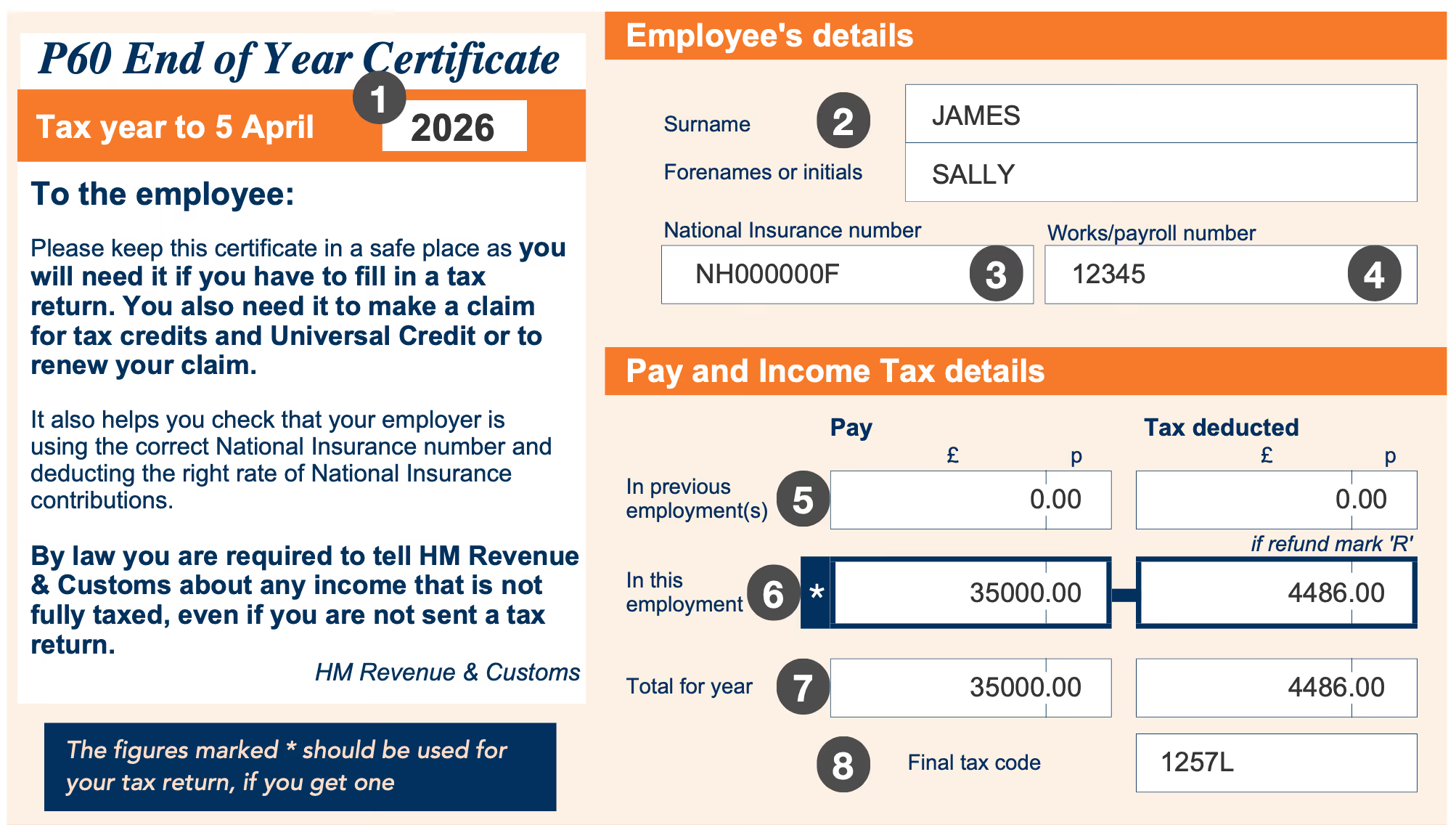
1. Tax Year
The P60 covers earnings during the pay year, which runs from 6 April to 5 April the following year.
2. Employee Name
Split into surname then forename and middle names (on some styles).
3. National Insurance Number
Your unique NI number. You can find it on any payslip, P60 or correspondence with HMRC. An exception is when someone has arrived in the UK and is awaiting their allocated number.
4. Works / Payroll Number
Your employer’s internal employee ID. Some companies don’t use this. It is not used externally.
5. Pay in Previous Employment
If you switched jobs during the pay year and handed your P45 to your new employer, your earnings and tax from the previous role will show here. They will match the figures on your P45. If you did not hand in a P45, this section will be blank. Important: this does not mean pay from previous tax years — a common misconception.
6. Pay in This Employment
Your gross pay and tax deducted since the start of the pay year with this employer. It will match your final payslip year-to-date (YTD) figures before 5 April.
7. Total for Year
The combined earnings and tax from this employment and any previous employment within the same pay year.
8. Tax Code
Your tax code at year end. If your code changed during the year, this shows the final code in use on 5 April. Most people will see 1257L.
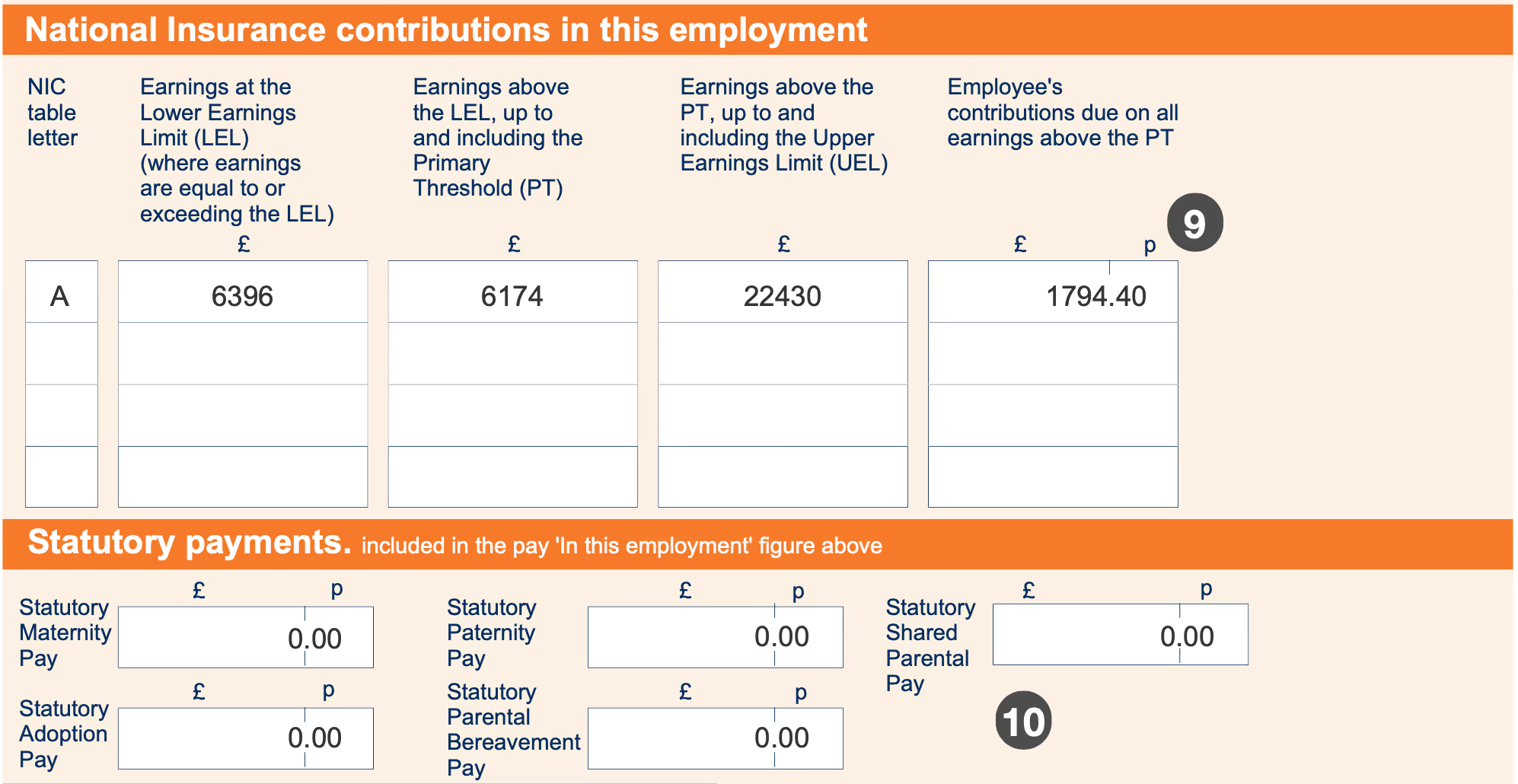
9. National Insurance Contributions
The breakdown of your NI calculation for the year. In 2026/27 the employee NI rate is 8% on earnings between £12,570 and £50,270, and 2% above £50,270. The ‘Employees Contribution’ column shows the total NI you paid. Your employer’s NI contribution is shown separately — that is their cost, not yours.
10. Statutory Payments
If you received Statutory Maternity Pay (SMP), Statutory Paternity Pay (SPP), Shared Parental Pay (ShPP), or Statutory Adoption Pay (SAP) during the year, it will be detailed here.
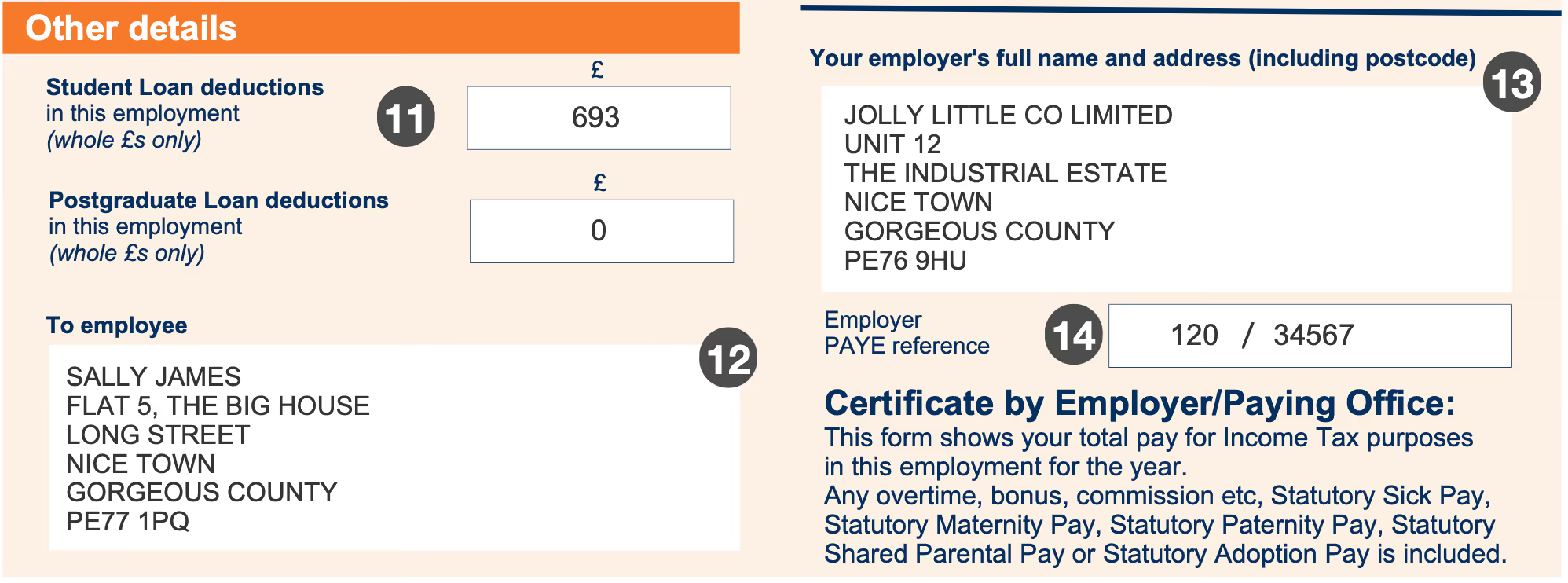
11. Student Loan
The total student loan repayments deducted from your pay during the year. This only appears if you are on a repayment plan and earning above your plan’s threshold.
12. Employee Name & Address
Your full name and home address as held by your employer’s payroll system.
13. Company Name & Address
Your employer’s trading name and registered address.
14. Employer PAYE Reference
A unique code that identifies your employer for tax purposes, assigned by HMRC when the company registered for PAYE. It usually follows the format 123/AB456. You’ll need this when contacting HMRC about your tax, claiming a refund, or completing a self-assessment return.
What should you do with your P60?
Keep it. HMRC recommends keeping your P60 for at least four years. Scan it or download it digitally as soon as you receive it. Here are the main situations where you’ll need it:
| Situation | Why your P60 is needed |
|---|---|
| Mortgage or remortgage application | Lenders use it to verify your income over multiple years. |
| Rental application | Landlords and letting agents use it to verify affordability. |
| Self-assessment tax return | You’ll need the figures from your P60 to complete your return accurately. |
| Tax rebate claim | If you’ve overpaid tax, HMRC will use your P60 to calculate your rebate. |
| Visa or immigration application | The Home Office uses it to verify your earnings and tax compliance. |
| Benefits claim | Universal Credit and some other benefits require proof of earnings. |
| Student loan assessment | The Student Loans Company may use it to verify repayment thresholds. |
| State Pension forecast | Your NI contributions shown on your P60 count towards your State Pension entitlement. |
How to check your P60 is correct
It’s worth checking your P60 against your own records. Payroll errors do happen, and if your tax or NI figures are wrong it can affect your tax record for years. Your P60 totals should match the final payslip of the tax year — usually your March or April payslip — in terms of year-to-date totals.
Here’s how to do it in three steps using our free P60 Calculator:
Step 1 — Find your gross salary from field 6 or 7 on your P60 (‘Pay in This Employment’ or ‘Total for Year’).
Step 2 — Enter it into the P60 Calculator along with your tax code (field 8), student loan plan if applicable (field 11), and your region. Hit Calculate.
Step 3 — Compare the calculated income tax and NI against what your P60 shows. If they’re significantly different, raise it with your payroll department.
As an example, on a £35,000 salary with tax code 1257L, the calculator shows income tax of £4,486 for the year and employee NI of £1,794.40. Add a Plan 2 student loan and the annual repayment is £693.45. If your P60 shows materially different figures, something may need checking.
Bear in mind that small differences are normal if your salary changed during the year, you received bonuses or overtime, or you had a non-standard tax code at any point.
What if you’ve lost your P60?
Your employer is not legally required to issue a replacement P60. Once the original has been issued, it’s considered delivered — getting a copy is at their discretion. You have several options:
- Check your online payroll portal — if your employer uses a system like Workday, BambooHR, or similar, your P60 is likely available to download digitally at any time.
- Ask your employer or payroll department — many will issue a duplicate or a letter confirming the same information. Employers must keep PAYE records for at least 3 years.
- Contact HMRC — HMRC hold your tax records and can provide a statement of earnings via your Personal Tax Account online or by calling 0300 200 3300 (Mon–Fri). This is not a P60 but is often accepted as proof of income.
- Get a replacement P60 from OS Payroll — we provide professional replacement P60 documents based on your earnings and tax information. Free sample first — pay only when you’re happy.
→ Create a replacement P60 at os-payroll.co.uk
P60 vs P45 — what’s the difference?
| P60 | P45 | |
|---|---|---|
| When issued | End of tax year (by 31 May) | When you leave a job |
| Who gets it | Employees still in post at 5 April | Employees who leave during the year |
| What it covers | Full tax year earnings and deductions | Earnings up to your leaving date |
| Who issues it | Your current employer | Your previous employer |
| What you do with it | Keep for your records | Give to your new employer |
| If lost | Request from employer or use OS Payroll | Complete a Starter Checklist instead |
If you started a new job without a P45 — for example it was your first job, or your previous employer didn’t issue one — you complete a Starter Checklist instead. This tells your new employer what tax code to use.
Frequently asked questions
What is a P60 used for?
A P60 is used to prove how much you earned and how much tax you paid during a tax year. You’ll need it for mortgage applications, tax rebates, rental applications, visa applications, benefit claims and self-assessment returns.
When should I receive my P60?
Your employer must give you your P60 by 31 May following the end of the tax year (5 April). Many employers now issue P60s digitally through payroll portals.
Is a P60 the same as a payslip?
No. A payslip shows your pay for a specific period (monthly, weekly etc). A P60 is a summary of your total pay and tax for the entire tax year.
Does my P60 show my pension contributions?
Not usually. Workplace pension contributions are typically shown on your payslips but not on your P60. Your pension provider will send a separate annual statement.
Can I get a P60 for a previous year?
Your employer may be able to provide one — they must keep PAYE records for at least 3 years. If not, HMRC can provide an earnings statement, or OS Payroll can provide a replacement P60 document.
What if my P60 shows the wrong pay figure?
Contact your payroll department as soon as possible. Keep copies of your payslips as evidence. If the error affects your tax position, contact HMRC too.
Do I get a P60 if I’m on maternity or paternity leave?
Yes, as long as you’re still employed at 5 April. Your P60 will show any statutory pay received during the year.
What does ‘total pay in previous employments’ mean on my P60?
If you changed jobs during the tax year, your new employer carries forward your cumulative pay and tax figures from your P45. This ensures your annual totals are correct. It does not mean pay from previous tax years.
Will anyone know it’s a replacement P60?
A replacement P60 from OS Payroll is printed on original stationery with your actual pay data. It does not say ‘replacement’, ‘copy’ or ‘duplicate’.
Check your P60 figures
Use the free OS Payroll P60 Calculator to see exactly what your year-end certificate should show — income tax, National Insurance, student loan, and the full NI breakdown in P60 field order.
This post is for general information only and does not constitute financial, legal, or tax advice. For queries about your specific tax position, contact HMRC or a qualified tax adviser.